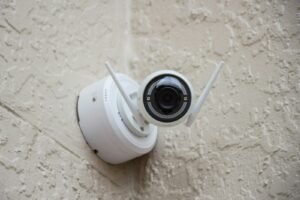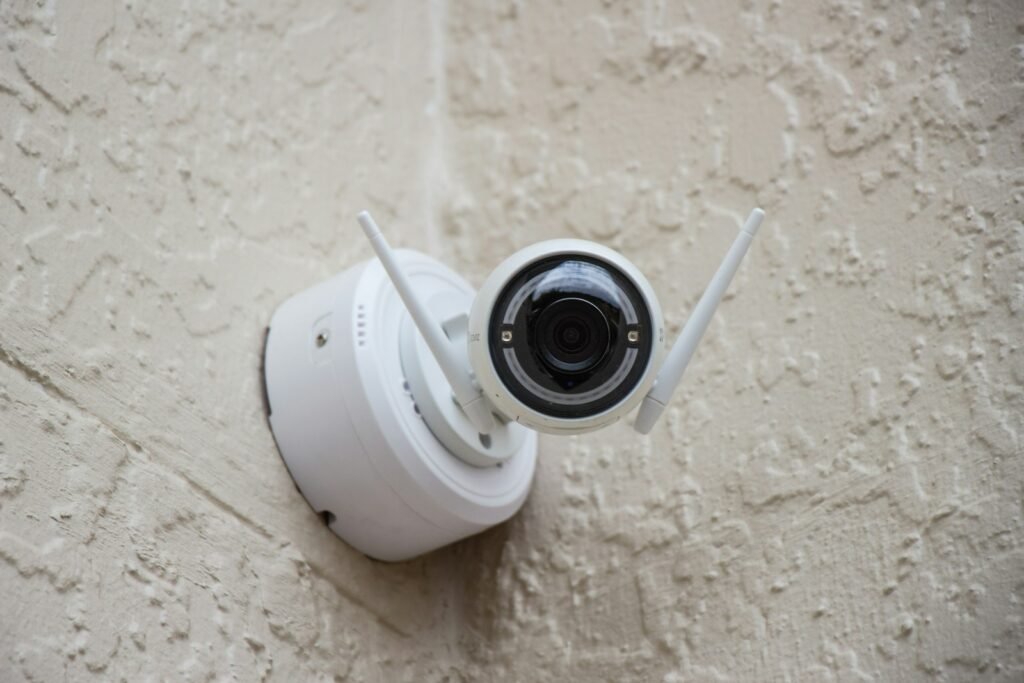
A home office security camera only actually protects your space if it’s positioned and configured correctly, not just plugged in and forgotten. By the end of this guide, you’ll have a camera set up with the right coverage, notifications, and privacy settings for a home office specifically.
What You’ll Need
- A security camera — the Ring Indoor Cam is a solid all-around option with a physical privacy cover
- A budget option like the Tapo C101 1080P Indoor Security Camera
- A phone with the camera’s companion app installed
- A stable Wi-Fi connection near the camera’s mounting spot
Step-by-Step Instructions
Step 1: Choose a mounting spot that covers the entry point
Position the camera so it has a clear view of the room’s main entry, rather than a corner that only sees part of the space.
Step 2: Confirm Wi-Fi signal strength at that exact spot
Weak Wi-Fi at the mounting location causes dropped connections and delayed alerts — check signal strength there specifically before finalizing the mount, not just near your router.
Step 3: Set up the companion app and connect the camera
Follow the app’s pairing process, which typically involves scanning a QR code or entering a network password directly into the camera’s setup flow.
Step 4: Adjust motion detection sensitivity
Default sensitivity settings often trigger on minor movement like sunlight shifts or ceiling fans — tune this down until you’re only getting alerts for genuine activity.
Step 5: Set specific activity zones if supported
Many cameras let you define zones within the frame to monitor, letting you ignore a window with outside foot traffic while still watching the room’s interior.
Step 6: Test the physical privacy cover or mode
If your camera includes a manual privacy cover or software privacy mode, test it before you need it for a confidential call, confirming it fully disables both video and audio.
Tips for Best Results
- Check Wi-Fi signal strength at the exact mounting spot, not just generally in the room
- Tune motion sensitivity down from default settings to reduce false alerts
- Use activity zones if available to ignore areas outside what you actually want monitored
- Test your privacy cover or mode before relying on it during a confidential call
Common Problems
The most common issue is excessive false alerts from motion sensitivity set too high, which trains you to ignore notifications entirely. Lowering sensitivity and using activity zones (if supported) usually solves this without sacrificing real coverage.
Frequently Asked Questions
Where should I mount a home office security camera?
Position it with a clear view of the room’s main entry point, and confirm Wi-Fi signal strength at that exact spot before finalizing the mount.
How do I stop getting too many false motion alerts?
Lower the motion sensitivity setting from its default, and use activity zones if your camera supports them to ignore irrelevant areas like a window with outside foot traffic.
Does a security camera need a subscription to work?
Not for basic recording and alerts on most models — subscriptions typically unlock extended cloud storage and advanced features, not core functionality.
How do I make sure the camera isn’t recording during confidential calls?
Use a physical privacy cover if your camera has one, or the software privacy mode if not, and test it beforehand to confirm it fully disables both video and audio.
Conclusion
A security camera earns its place in a home office once it’s tuned to alert on real activity rather than noise, and once you trust its privacy controls. Ready to upgrade? Check our Best Home Office Security Cameras guide for a full comparison of top picks.