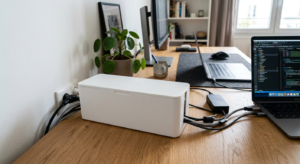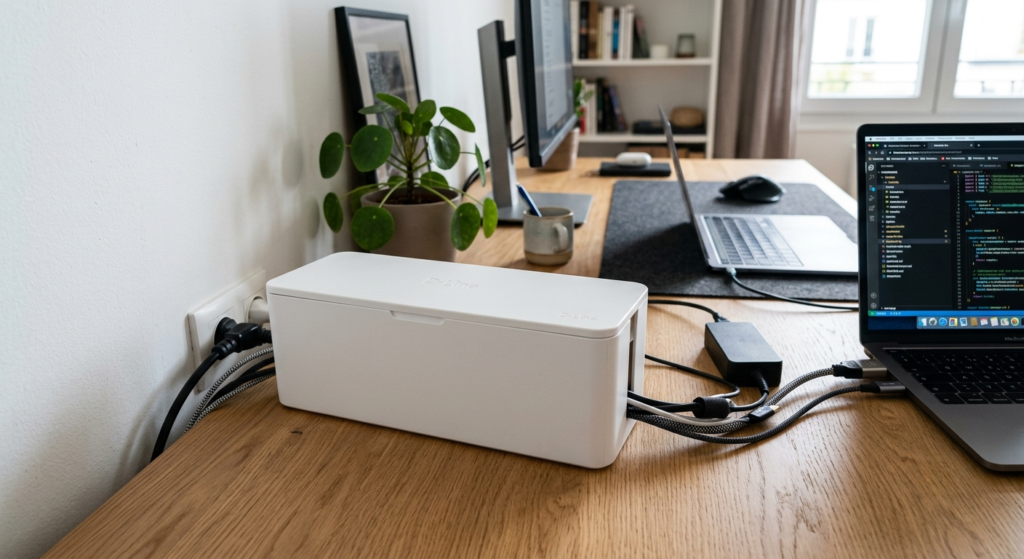
A power strip with five cables plugged into it is one of the messiest, most visible spots on a home office floor or desk — a cable box hides the whole cluster in one enclosed unit. By the end of this guide, you’ll have your power strip and its cables tucked into a box instead of sitting exposed.
What You’ll Need
- A cable box sized to your power strip — D-Line Cable Management Box (Large) fits most standard power strips with room for cable slack
- A smaller option like the Baskiss Cable Management Box if your setup is compact
- A tape measure to check your power strip’s dimensions before buying
- 5 minutes to arrange cables inside the box
Step-by-Step Instructions
Step 1: Measure your power strip before buying a box
Check the length, width, and height of the power strip plus a few inches of cable slack — buying a box too small to close properly defeats the purpose.
Step 2: Unplug everything before moving the power strip
Disconnect all devices from the power strip first so you’re not fighting live cables while repositioning it into the box.
Step 3: Feed cables through the box’s entry slots
Most cable boxes have pre-cut slots on each end — feed the strip’s own power cable through one slot and route each device cable through the other.
Step 4: Place the power strip inside and close the lid
Set the strip flat inside the box with its outlets facing up and accessible, then close the lid, leaving enough slack in each entry cable that closing the lid doesn’t strain a connection.
Step 5: Route the exiting cables to their devices
Once closed, route the cables coming out of the box to their respective devices using clips or a raceway rather than leaving them loose again on the other side.
Step 6: Reconnect and test
Plug your devices back in and confirm everything powers on normally before considering the box’s position final.
Tips for Best Results
- Leave the box’s outlets facing an accessible side in case you need to plug in something new later
- Don’t overload a single power strip inside the box — check its rated wattage against your total device load
- Position the box somewhere with airflow; enclosing a power strip can trap heat if it’s already running warm
- Label which cable enters which slot if the box holds several devices, to make future troubleshooting faster
Common Problems
The most common issue is the box being slightly too small once cables and slack are accounted for, which prevents the lid from closing fully. If this happens, look for a slightly larger box size rather than forcing the lid or leaving it propped open, which defeats the purpose of hiding the mess.
Frequently Asked Questions
What size cable box do I need?
Measure your power strip’s length, width, and height plus a few inches for cable slack before buying — a box that’s too tight won’t close properly once everything is inside.
Is it safe to enclose a power strip in a cable box?
Yes, as long as the box has ventilation and you’re not exceeding the power strip’s rated wattage — avoid stacking heat-generating devices or overloading a single strip inside an enclosed box.
How do cables get in and out of a cable box?
Most boxes have pre-cut entry slots on each end specifically for routing cables in and out while keeping the power strip itself hidden inside.
Can a cable box hold more than one power strip?
Some larger boxes can, but check the box’s interior dimensions and your combined power strip footprint first — an overcrowded box makes cable routing and any future changes harder.
Conclusion
A cable box is one of the fastest wins for hiding a messy power strip — the only real trick is measuring correctly before you buy. Ready to upgrade? Check our Best Cable Boxes guide for a full comparison of top picks.