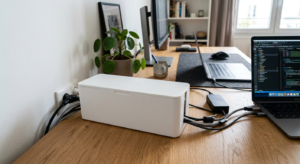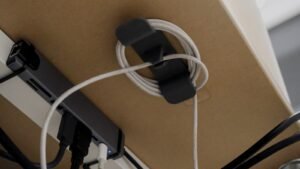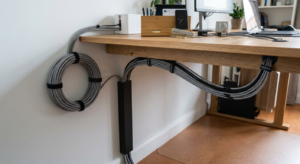
Cables and power strips sitting directly on the floor under your desk collect dust and are easy to kick loose by accident. By the end of this guide, you’ll have an under-desk cable tray mounted to hold your power strip and cable slack up off the floor, out of sight and out of the way.
What You’ll Need
- An under-desk tray — a clamp-mount option like the No-Drill Metal Mesh Tray avoids any drilling into your desk
- A self-adhesive option like the No-Screw Self-Adhesive Tray (Set of 2) for a lighter-duty second mounting point
- A tape measure to confirm the tray fits your desk’s underside clearance
- A screwdriver, only if using a screw-mount tray
Step-by-Step Instructions
Step 1: Measure your desk’s underside clearance
Check the depth from the underside of your desktop to the floor, and the space between your desk’s legs or supports, to confirm the tray you’re buying will actually fit without hitting your legs while seated.
Step 2: Choose a mounting method that matches your desk
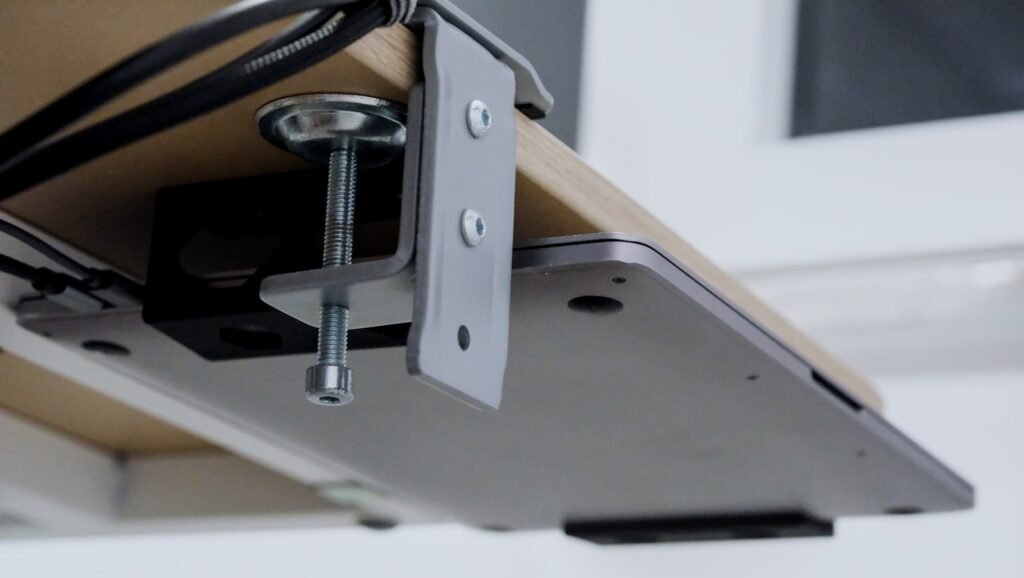
A clamp-mount tray works without any permanent modification and suits desks you might reposition later; a self-adhesive tray is lighter-duty but leaves no clamp marks, useful for thinner desktops a clamp won’t grip well.
Step 3: Position the tray away from your leg space
Mount it toward the back of the desk or to one side rather than directly under where your knees sit, so the tray and its contents don’t interfere with sitting comfortably.
Step 4: Attach the tray following its specific mounting method
For a clamp-mount tray, tighten the clamp evenly on both sides against the desktop; for adhesive mounts, clean the surface first the same way you would for any adhesive cable product.
Step 5: Place your power strip and cable slack inside
Once mounted, set your power strip flat in the tray and coil any excess cable length neatly rather than letting it hang below the tray’s edge.
Step 6: Route cables to and from the tray
Use clips or a raceway to guide cables from the tray up to your desktop devices and down to the wall outlet, so the tray becomes the organized center point rather than an isolated fix.
Tips for Best Results
- Check clamp-mount trays for maximum desktop thickness before buying — very thick or very thin desktops may not be compatible
- Position the tray so you can still reach it occasionally to add or remove a device without fully uninstalling it
- Don’t let cable slack hang below the tray’s edge, which defeats the purpose of clearing the floor
- A metal mesh tray typically supports more weight than a lightweight adhesive-mount plastic tray
Common Problems
The most common issue is a clamp-mount tray not fitting the desk’s actual thickness, either too thin to grip firmly or too thick for the clamp to close. Always check the tray’s stated clamp range against your desktop’s measured thickness before ordering, rather than assuming a standard fit.
Frequently Asked Questions
Do I need to drill into my desk to install an under-desk tray?
No — clamp-mount trays attach without drilling, and adhesive-mount trays stick on without any hardware at all. Both avoid permanently modifying the desk.
How much weight can an under-desk cable tray hold?
This varies by model — metal mesh trays generally support more weight than lightweight adhesive-mount plastic trays, so check the stated weight rating against your power strip and cable load.
Where should I position the tray under my desk?
Toward the back or to one side, away from where your legs and knees sit while seated, so the tray doesn’t interfere with comfort.
Will a clamp-mount tray damage my desk?
A properly sized clamp shouldn’t damage the desk, though very soft or finished wood surfaces can occasionally show light clamp marks — check the tray’s clamp range and consider a felt pad if you’re concerned.
Conclusion
An under-desk cable tray clears the floor in about ten minutes, as long as you measure your desk’s clearance and clamp range correctly first. Ready to upgrade? Check our Best Under-Desk Cable Trays guide for a full comparison of top picks.